# GFF Documentation
# Getting Started
## Install Godot Frog Framework
### Software dependencies
**Linux Mint / Debian**
Install the software dependencies by entering the following command in a terminal:
```bash
sudo apt install -y python3 pipx
pipx ensurepath
```
**Windows**
Install the software dependencies by entering the following command in a Powershell command prompt with administrator rights:
```pwsh
winget install Python.Python.3.12
py -m pip install --user pipx
pipx ensurepath
```
### Install Godot Frog Framework CLI
```bash
pipx install git+https://git.collectivit.org/simple-frogs/godot-frog-framework.git
gff install
```
Later, you can check for `gff` upgrade with command:
```bash
pipx upgrade gff
```
## Create a new Godot project
Create a new Godot project based on GFF template with command:
```bash
gff new ProjectName
```
You can then configure your preferences per project by executing gff commands in the project directory.
### Configure your default text editor
The framework supports both NeoVim and Visual Studio Code. To select your preferred default text editor, execute the setup script using the `--text-editor` argument:
```bash
gff setup --text-editor NeoVim
```
The setting will be stored in the file `.ggf/.user-config` in your repository so you don't need to specify it any time you call the setup script.
The setup script will automatically configure godot to open in the specified text editor.
#### VS Code special configuration
Run the setup script to configure Visual Studio Code as your preferred default text editor:
```bash
gff setup --text-editor VSCode
```
Then configure Visual Studio Code following this steps:
- Install the recommended extensions, vscode should ask you after opening the workspace, if not hit **CTRL+P** and type `Show Recommended Extensions`.
- Setup VS Code User Setting (File -> Preferences -> Settings), set property `godot.csharp.executablePath` to the Godot executable path:
- For Linux: `~/.local/opt/godot/ActiveVersion/Godot-stable_mono_linux.x86_64`.
- For Windows: `${env:UserProfile}/AppData/Local/Programs/Godot/ActiveVersion/Godot-stable_mono_win64.exe.`
Note: You can run the setup script by running the `Setup Environment` task (Ctrl+Shift+P -> Run Task -> Setup Environment).
# GFF Cli
# Commands
GFF commands are a set of tools that can either be used manually with a terminal or with a CI system. These tools helps you create new projects, managing your working environment, your project exports and the localization management.
Here is the list of commands available (use `gff --help` to get it from a command line):
**Global commands**
These commands are available anywhere.
- [install](https://frog-doc.collectivit.org/books/gff-documentation/page/commands#bkmrk-install): Install Godot Frog Framework.
- [uninstall](https://frog-doc.collectivit.org/books/gff-documentation/page/commands#bkmrk-uninstall): Uninstall Godot Frog Framework.
- [new](https://frog-doc.collectivit.org/books/gff-documentation/page/commands#bkmrk-new): Create a new Godot project.
**Project commands**
These commands are available from the root folder of a Godot project created with `gff new`.
- [setup:](https://frog-doc.collectivit.org/books/gff-documentation/page/commands#bkmrk-setup) Sets up the development environment.
- [build](https://frog-doc.collectivit.org/books/gff-documentation/page/commands#bkmrk-build): Build project with Godot.
- [export](https://frog-doc.collectivit.org/books/gff-documentation/page/commands#bkmrk-export): Export standalone executable with Godot.
- [publish](https://frog-doc.collectivit.org/books/gff-documentation/page/commands#bkmrk-publish): Publish standalone executable on a store.
- [release-version](https://frog-doc.collectivit.org/books/gff-documentation/page/commands#bkmrk-release-version): Export and publish all version on all stores.
- [cherry-pick](https://frog-doc.collectivit.org/books/gff-documentation/page/commands#bkmrk-cherry-pick): Interactive process to cherry-pick missing commits from godot-starter-project in your project.
- localization: Tools for localization.
- [new](https://frog-doc.collectivit.org/books/gff-documentation/page/commands#bkmrk-localization-new): Create a new translation file for a specific language.
- [translate](https://frog-doc.collectivit.org/books/gff-documentation/page/commands#bkmrk-localization-translate): Translate locale en.po in any language automatically using DeepL.
- [update](https://frog-doc.collectivit.org/books/gff-documentation/page/commands#bkmrk-localization-update): Update gettext localization files with text extracted from code and game databases.
- [create-icon](https://frog-doc.collectivit.org/books/gff-documentation/page/commands#bkmrk-create-icon): Create a valid ico file from a png image input.
You can list the available arguments of a command by using the `--help` argument. You can also sets up the verbosity level using `-v`, `-vv` (more v for more verbosity) on all commands:
```bash
gff -v command_name --help
```
## Global commands
### install
Initialize the Godot Frog Framework. This command must be used before using other commands. It install GFF packages dependencies, install and register the [godot-starter-project-template](https://git.collectivit.fr/frog-collective/godot-starter-project-template) and setup a [godot-starter-project](https://git.collectivit.fr/frog-collective/godot-starter-project) environment.
```bash
gff install
```
### uninstall
Revert the install command. It unregister and delete the [godot-starter-project-template](https://git.collectivit.fr/frog-collective/godot-starter-project-template).
```bash
gff uninstall
```
### new
Create a new Godot project. ProjectName is the name of the project (you should use CamelCase to be compliant with C# project guidelines).
```bash
gff new ProjectName
```
## Project commands
### setup
Sets up or repair the development environment. It ensure that git configuration is correct, that the correct version of dotnet is installed, download and install needed sdk, activate or download and install the correct Godot version and sets up Godot editor settings.
```bash
gff setup
```
Setup command should be executed every time you switch to a different project.
You can use the setup command to force the installation of a specific Godot version using the `--force-godot-version` option. This is useful for Godot migration. The new Godot version number is stored in the file `global.json` and will be used automatically when calling the setup command without arguments.
```bash
gff setup --force-godot-version 4.7
```
The setup command can configure which text editor you want to use and configure the Godot editor settings accordingly. For now the supported editors are `NeoVim`and `VSCode`. This configuratin will be stored in the file `.ggf/.userconfig` to ensure it stay applied when calling the setup session without arguments.
```bash
gff setup --text-editor NeoVim
```
### build
Build your project using Godot. It can be used on CI to ensure that your project compilation can succeed.
```bash
gff build
```
### export
Create a standalone executable of your project.
```bash
gff export --app Game --platform Linux --configuration Debug --drm NoDrm
```
#### Export template installation
To export your game, you need to install Godot Export Template for each platform you want to export to.
In Godot, go to the Export Template Manager (`Editor -> Manage Export Templates...`), select the platform you want to export to and click on `Install Selected Templates`.
### publish
Send an exported build of your project to a destination Store.
```bash
gff publish --destination Steam --app Game --platform Linux
```
This command is rarely used manually, prefer using the release-version command to publish your application.
### release-version
Gather the change-log from git since the last release, increment the version number, export all builds for all supported platforms and for all supported drm, then publish them on all stores and create a new release on Forgejo.
```bash
gff release-version --app Game
```
### cherry-pick
Interactive process to cherry-pick new commits from [godot-starter-project](https://git.collectivit.org/frog-collective/godot-starter-project) in your project. This command must be used to update the Godot Frog Framework in your project.
```bash
gff cherry-pick
```
### localization new
Create a new translation file for a specific language. The target language must be entered using a language code (ex: 'en'). See the exhaustive list of [supported language code](https://docs.godotengine.org/en/stable/tutorials/i18n/locales.html) in Godot.
```bash
gff localization new fr
```
### localization translate
Translate locale en.po in any language automatically using DeepL. The target language must be entered using a language code (ex: 'en'). See the exhaustive list of [supported language code](https://docs.godotengine.org/en/stable/tutorials/i18n/locales.html) in Godot. You must define a Deepl API Token necessary for the translation using the option `--deepl-api-key` or by using the environment variable `DEEPL_API_KEY`.
```bash
gff localization translate --deepl-api-key DEEPL_API_TOKEN fr
```
This should be used only for prototyping. Automatic translation quality can be very bad for game since context is often small.
### localization update
Update gettext localization files (template and translations) with text extracted from code and game databases.
```bash
gff localization update
```
### create-icon
Create a valid ico file from a png image input.
```bash
gff create-icon --input project/icon.png --output project/icon.ico
```
### Add custom project commands
It is possible to add commands that are specific to your project. Create a new python file in the folder `.gff/commands/` following this model:
```python
# file: .gff/commands/custom_command.py
from logging import getLogger
from click import command
@command()
def custom_command() -> None:
"""GFF command specific to this project."""
logger = getLogger()
logger.info("Done.")
```
Then import it in the commands module:
```python
# file: .gff/commands/__init.py__
#...
from .custom_command import custom_command
#...
__all__ = [
#...
"custom_command",
#...
]
```
# Configuration
Godot Frog Framework tools configuration is done in the file `.gff/commands/common/configuration.py` in your project repository.
Here is a sample file that shows the configuration possibilities:
```python
from .classes import App, Apps, Depot, Drm, Platform, Store
# API url of your repository (used to automatically create a release entry when releasing a new version of your game).
FORGEJO_API_URL = "https://git.collectivit.fr/api/v1/repos/frog-collective/godot-starter-project"
# Your game name. It should automatically be set when creating your project with the dotnet template.
GAME_NAME = "StarterProject"
# List all the platforms supported by your project.
PLATFORM_NAMES: list[Platform] = [Platform.Linux, Platform.Windows]
# List all the DRM supported by your project.
DRM_NAMES: list[Drm] = [Drm.NoDrm, Drm.Steam]
# List the stores where you want to automatically publish when releasing a version.
STORE_NAMES: list[Store] = [Store.Steam, Store.ItchIO]
# The Steam SDK url compatible with your project.
STEAM_SDK_URL = "https://partner.steamgames.com/downloads/steamworks_sdk_160.zip"
# You can register multiple Applications.
# - Each application must have a specific id on each store you want to publish.
# - You must define a depot for each platform you want to publish (with associated depot ids).
# - You can customize Godot features, c# define constants and asset exclude filters per app.
APPS = (
Apps()
.register_app(
App("Game", steam_app_id=0, itch_io_id="")
.register_depot(Depot(Platform.Windows, steam_depot_id=0, itch_io_depot_id=""))
.register_depot(Depot(Platform.Linux, steam_depot_id=0, itch_io_depot_id=""))
)
.register_app(
App("Demo", steam_app_id=0, itch_io_id="")
.register_depot(Depot(Platform.Windows, steam_depot_id=0, itch_io_depot_id=""))
.register_depot(Depot(Platform.Linux, steam_depot_id=0, itch_io_depot_id=""))
.custom_feature("demo")
.exclude_filter("data/fullgame/*")
.define_constant("DEMO_ONLY")
)
)
```
# Godot Project
# Godot project architecture
## Application Scopes
In GFF, an application scope is an entry point available during a specific period of time in the application lifetime.
Application is structured within two scopes:
- **App** (`res://sources/App.cs`): The **App** scope, initialized at the start of the application, released before quitting. App act like a singleton.
- **Game** (`res://sources/Game.cs`): The **Game** scope, initialized when starting or loading a game, released when going back to main menu.
Each scope contains `Services` that can be accessed from anywhere within the scope. Services are declared in the `RegisterServices` method of an application scope by filling the dependency builder with instances.
Current rendering driver is accessible in static field `ApplicationScope.RenderingDriver`. It can be checked to enable some compatibility features.
### Application Version
Current version of the application can be accessed from the static field `ApplicationScope.Version`. It is modified when using the command `gff release-version` (you can also modify it manually in the csproj file).
You may need to execute some code when moving from a version to another (migrate some settings, checking for unlock of newly created achievements, etc ...). You can do this by registering a delegate using `ApplicationScope.RegisterVersionMigrationCallback(ApplicationVersionChangedEventHandler migrationCallback)`. Registered delegate will be called only the first time after a version change.
### App Scope
The App scope is the first entry point of the Godot application. It's constructor parse command line arguments so they are accessible during the whole execution of the application (`App.Args`). They are parsed by the [CommandLine](https://github.com/commandlineparser/commandline) library.
It also have a helper to checks for the availability of a feature (method `HasFeature(string tagName)`). This method replace Godot's helper `OS.HasFeature`. In Debug mode, this method allows developers to force features (e.g., "demo", "steam") to report as available by checking specific arguments, overriding Godot feature status.
## Services
The [**service locator pattern**](https://en.wikipedia.org/wiki/Service_locator_pattern) is a design pattern used in software development to encapsulate the processes involved in obtaining a service with a strong abstraction layer. This pattern uses a central registry known as the "service locator", which on request returns the information necessary to perform a certain task.
The service locator pattern provides global access to services without the testability issues of singletons. This pattern allows swapping implementations for testing or different platforms while maintaining a simple API for service access.
The API allows to declare services like this:
```c#
// Register a service by giving its type. A new instance will automatically be created.
dependencyBuilder.AddSingleton()
// Abstract a service behind an interface. You can get the instance using the interface type.
// This allows to change the instance depending on some conditions without having to change the code on the user side.
if (App.HasFeature("steam"))
{
dependencyBuilder.AddSingleton();
}
else
{
dependencyBuilder.AddSingleton();
}
// It's also possible to manually instantiate the service (useful when having specific instanciation rules).
dependencyBuilder.AddSingleton(new Application.AppSettings(this.GetTree().Root))
// You can also provide instances from the scene tree to make them globally accessible.
dependencyBuilder.AddSingleton(this.GetChildren().First())
```
Services are then accessible from anywhere within the scope of its service locator (the Application Scope):
```c#
AppSettings appSettings = App.Services.Get();
IDrmService drmService = App.Services.Get();
```
A service must implement the interface `ISingleton` and must declare a method named `Bind` that will receive as parameters other services that it depends on. This method is called by the dependency builder using dependency injection to fill parameters.
```c#
// Declare IDrmService parameter to create a dependency to this service.
public void Bind(IDrmService drmService)
{
// Then, use drmService to initialize the service...
}
```
There is 3 methods in `ISingleton` interface, `Initialize` and `Release` are called when the Application Scope start / exit. `Update` is called every frame. To ensure a specific order of call, you can set a dependency between two services.
## App State
The execution flow of the application is controlled by a [hierarchical state machine](https://frog-doc.collectivit.org/books/gff-documentation/page/hierarchical-state-machine "Hierarchical State Machine") (HSM). It is registered as a service in the App scope (`res://sources/application/AppState.cs`). HSM allow you to easily add new states without having to break your existing state machine. You can control general behavior using parent states, and more specific one with child states. You can add any number of hierarchy level you need.
Another HSM is used to control game execution flow (`res://sources/gameplay/GameState.cs`).
# Hierarchical State Machine
## Definition
The state pattern allows objects to change behavior based on their internal state, effectively implementing finite state machines (FSM). This pattern is essential for managing AI behavior, player character states, game flow states, and animation controllers.
State machines prevent spaghetti code from proliferating conditional statements and ensure clear state transitions.
Complex AI and game flow often require hierarchical state machines (HSM) where states can contain sub-states.
Hierarchical state machines reduce code duplication by allowing states to share common behavior through parent states. When transitioning between child states, the parent state remains active and continues executing its logic.
## Implementation
In GFF, a HSM is implemented by creating a class that derives from `HierarchicalStateMachine`.
`TState` and `TTransition` are enum types. It is recommended to declare theses enums inside the HSM class since they are highly specific to its implementation.
The HSM structure must be declared before updating it. It is recommended to do it in the constructor, then to call `AssertCorrectness` that verify the integrity of the HSM.
You can register a new state using the method `RegisterState`, then you register transitions to other states of the state machine with `RegisterTransitionTo`. You also can register a pass (a delegate) for any trigger type with `RegisterTransitionTo`.
Here are the available types:
- Begin: the pass is called when entering the state.
- Update: the pass is called each update while being in the state (after Begin the first time it enters the state, and before End the last time).
- End: the pass is called before leaving the state.
Each parent state must have one and only one default child. An implicit transition is created between the parent and its default child. When a transition has a parent state as destination, the HSM will automatically transition to the default child. If you don't want to go to the default child, it means you need to declare a transition to a child state directly.
### Example
For example, if we want to create the following state machine:
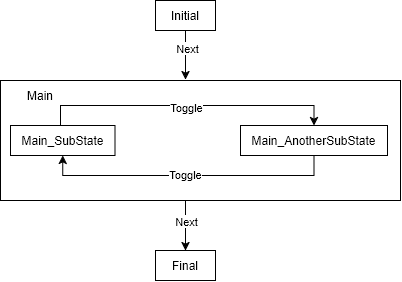
You can [serialize](https://frog-doc.collectivit.org/books/gff-documentation/page/serializer "Serializer") the HSM. It will restore its current state on load automatically.
Sources
https://generalistprogrammer.com/game-design-patterns#state-pattern
*Symetric serialization*: It is important to send your value as parameter **and** to retrieve it from the return value of serialization methods. This way the system can handle Read and Write operation for reference types and value types in a safe way.
You can then serialize it in any C# stream using a serializer (for now only JsonSerializer exists):
```c#
using (MemoryStream stream = new MemoryStream())
{
var objectToSerialize = new SerializableObject();
using (var serializer = new JsonSerializer(stream, JsonSerializer.SerializeMode.Writer))
{
objectToSerialize.Serialize(serializer);
}
var derializedObject = new SerializableObject();
using (var serializer = new JsonSerializer(stream, JsonSerializer.SerializeMode.Reader))
{
derializedObject.Serialize(serializer);
}
}
```
### API
This section describe how to serialize data in a `Serialize` method.
#### Object Serialization
You can serialize any object instance, array or list of instances that implement the `ISerializable` interface using the `Serialize` methods.
```c#
T Serialize(string key, in T serializableObject) where T : ISerializable;
T[] Serialize(string key, in T[] array) where T : ISerializable;
List Serialize(string key, in List list) where T : ISerializable;
```
#### Value Serialization
You can serialize any value type, array or list of value types using the `SerializeValue` methods.
```c#
T SerializeValue(string key, in T value);
T[] SerializeValue(string key, in T[] array);
List SerializeValue(string key, in List list);
```
#### Serialize simple objects as value
Some data structure are simple enough to be serialized as value but are not value type. This special cases are handled using the `SerializeAsValue` methods. For now these methods can serialize enum as integer or string, C# type as string or event Godot `RandomNumberGenerator`. You can also implement the `IValueConvertible` interface to create a specific conversion on types you own.
```c#
T SerializeAsValue(string key, in T serializableObject) where T : IValueConvertible;
Type SerializeAsValue(string key, in Type type);
RandomNumberGenerator SerializeAsValue(string key, in RandomNumberGenerator rng);
T SerializeAsValue(string key, in T enumValue, bool serializeAsInteger = false) where T : struct, Enum;
Queue SerializeAsValue(string key, in Queue enumQueue, bool serializeAsInteger = false) where T : struct, Enum;
```
#### Versioning
Handling version in serialization is mandatory if you want to handle backward compatibility in your game saves. You can write a version number to any `Serialize` method by using the `SerializeVersion` method. If no version is found the method return 0.
```c#
public void Serialize(Serializer serializer)
{
int version = serializer.SerializeVersion(1);
this.Legacyfield = serialize.Serialize("Legacyfield", this.Legacyfield);
if (version >= 1)
{
this.Newfield = serialize.Serialize("NewField", this.NewField);
}
}
```
The version number is unique per type so you can have different version number in inheritance level of a class hierarchy.
## Save Manager
High level manager that handle game saves.
### Game Save System
The `SaveManager` contains a list of save slots. It allows you to create, delete or edit any save slot. A save slot is represented by a single archive file in the save folder (it is a zip file using the `sav` extension).
#### Save Info
When you retrieve a save slot you get a `SaveInfo` reference. This structure contains the metadata about the save slot content. These metadata are stored as a config file in the game slot archive. You can add any custom metadata to the save (allowing you to gather information about the save without deserializing everything to display it in menus).
Metadata are organized in sections, the Main section contains all general metadata. Then there is one section per save entry.
#### Save Entries
You can store any instance that implement `ISerializationEntry` in a save slot as an entry. It creates one file per entry in the archive (plus an associated section in the metadata).
Use the `WriteEntry` and`ReadEntry` to store and retrieve entry instances from a save slot.
### Post Load Pass
Sometimes you need to serialize references to other serialized objects and you want to resolve these references during loading to just have a C# reference to use in your code. `PostLoad` pass just serve this purpose, it calls the `PostLoad` method on all instances that implements `ISerializableWithPostLoad` interfaces. This call is done after the deserialization process so all instances exists and have valid deserialized data.
PostLoad methods are called in reverse order than the Serialize methods (from child to parent).